- Welcome to Launch X431 Store
- WhatsApp: 8613421344069


When a Launch X-PROG5 refuses to connect and the power indicator stays locked on solid red, the immediate instinct is to open the programmer menu and run a forced firmware recovery. That procedure—grounding pins B2 and B4, running firmware repair, then reconnecting—is widely documented and does resolve a specific class of firmware corruption. But it is not the only cause of the red light, and on some setups it is not even the first thing you should check.
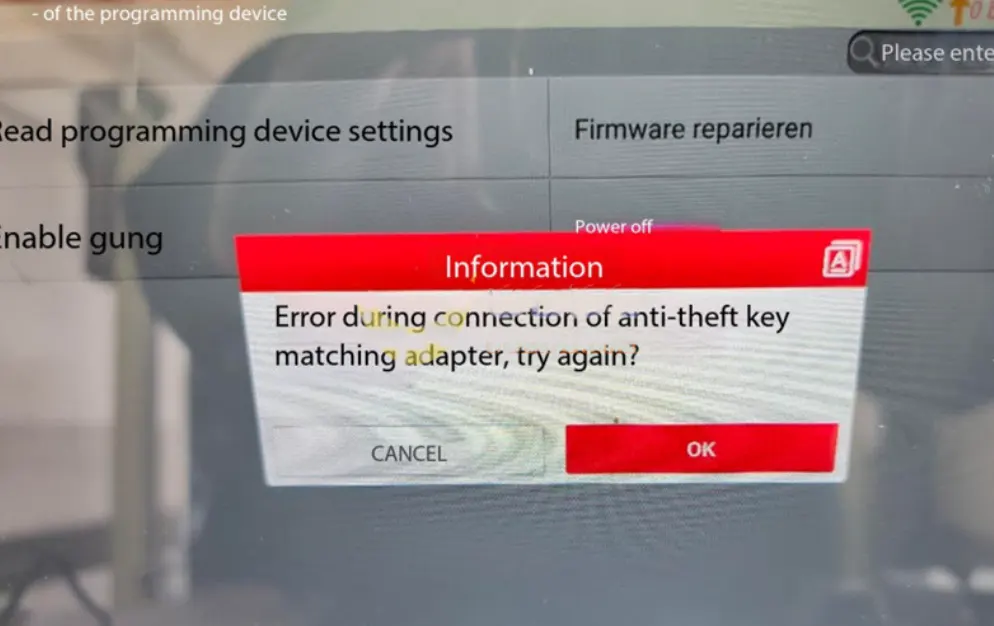
A frequent but underreported scenario involves the X-PROG5 working perfectly as a PC-connected ECU programmer via USB, yet failing to act as an immobilizer adapter on the diagnostic tablet. The adapter itself is healthy; the tablet software is the bottleneck. Launch's newer G5 hardware requires a sufficiently current X431 diagnostic application. If the tablet is running an older build, the software may simply fail to enumerate the adapter, producing a connection error while the red light remains on.
Before touching any pins, verify the X431 diagnostic software version on the tablet. The recommended baseline is V8.0 or higher. If the tablet cannot update through the normal channel, uninstalling the existing diagnostic application and reinstalling via the desktop APP Init utility is the documented workaround. This step alone has resolved connection failures for users whose X-PROG5 otherwise behaved normally on a computer.
If the tablet software is current and the X-PROG5 still presents a solid red light after power-up, forced firmware recovery becomes the appropriate next step. The process involves connecting terminals B2 and B4 to the panel GND, entering the Programmer interface, and selecting Firmware Repair. The goal is to interrupt the stuck boot state and re-flash the adapter's firmware over the wired connection.
Success here depends on clean, stable grounding. Loose jumper wires or incorrect terminal contact can cause the repair to fail mid-write, which may deepen the corruption rather than resolve it. Use secure leads and confirm the B2/B4 mapping against the hardware layout before applying the ground.
If firmware recovery completes without error and the red light persists, or if the programmer cannot enter repair mode at all, the fault has moved beyond recoverable firmware. A continuously solid red light after a completed recovery attempt is the conventional signal of internal circuit damage. At that point, continued pin manipulation adds no diagnostic value; dealer or after-sales replacement is the correct escalation.
The practical sequence is therefore: confirm tablet software compatibility first, attempt firmware recovery only when the software path is ruled out, and treat an unrecoverable red light after a clean recovery as a hardware boundary. Following this order prevents unnecessary bench work and avoids mistaking a software mismatch for a dead adapter.

![[EU/UK Version] LAUNCH X431 PRO3 APEX Diagnostic Scanner Support Topology Map Online Coding CAN FD & DoIP HD Truck Scan with 37+Services](https://obd-1317370369.cos.accelerate.myqcloud.com/2025/24071017206802678579-450x450.jpg)