- Welcome to Launch X431 Store
- WhatsApp: 8613421344069


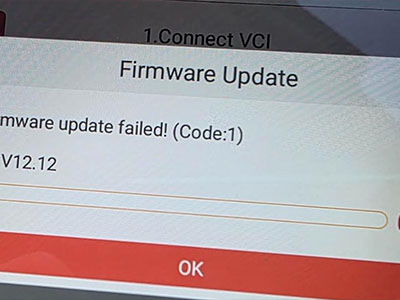
Users report that after successfully installing software (BMW V51.66) and firmware (V12.12) on the Launch Creader 2.0 BBA diagnostic scanner, the system immediately displays a "Firmware update failed" error when connecting to a vehicle or scanning the VIN. A factory reset, cache clearing, and using a mobile hotspot for "firmware repair" have all been attempted without success. This issue prevents the scanner from reading vehicle data properly.
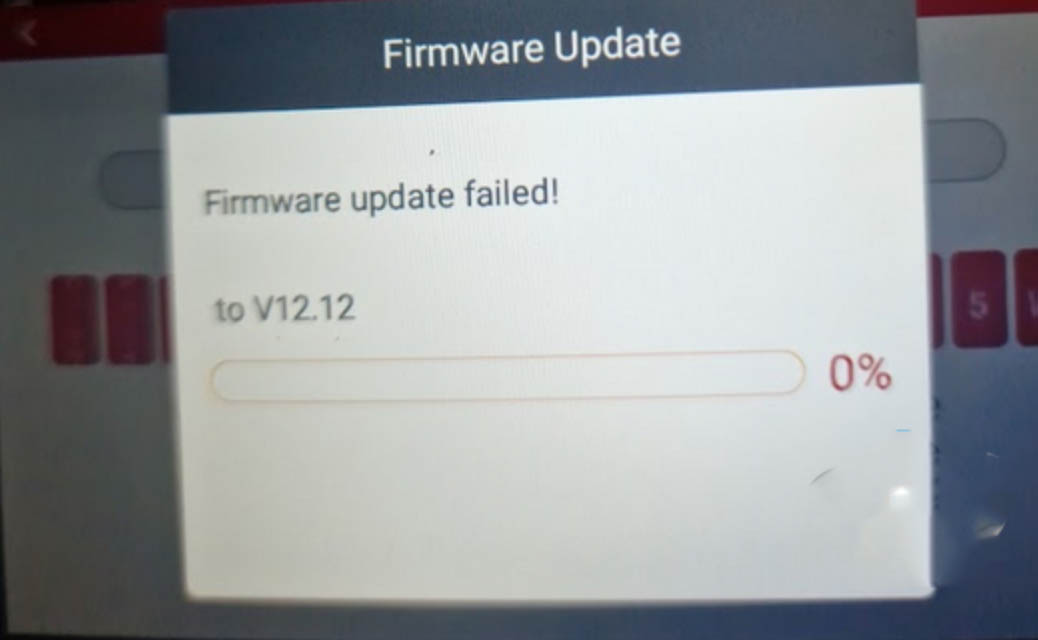
This solution also applies to other Creader series scanners experiencing firmware V12.12 update failures. Follow the steps carefully, especially the manual re-download of firmware files from the Update Center.
If the firmware repair process fails or repeatedly shows errors, first ensure your device is connected to a stable Wi-Fi network. Then open the Update Center on the scanner, locate the firmware files (V12.12) that need to be re-downloaded, and click "Update" to start downloading. Required firmware items include:
Make sure all listed files are fully downloaded to avoid repair failures due to missing components.
After the downloads are complete, return to the main interface of the diagnostic scanner. Tap "DATA" on the screen, then navigate to "Firmware Fix" and run the firmware repair process. Keep the device sufficiently charged and maintain a stable network connection during the procedure. Do not interrupt the process.
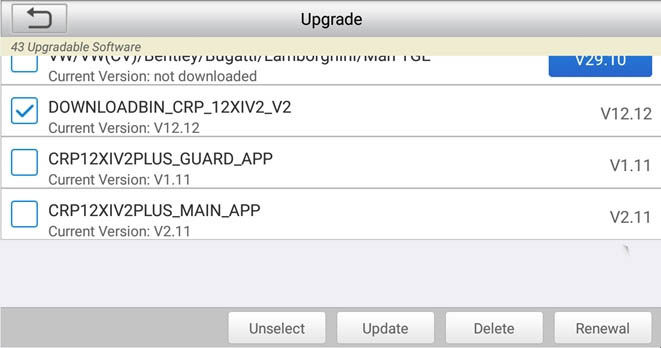
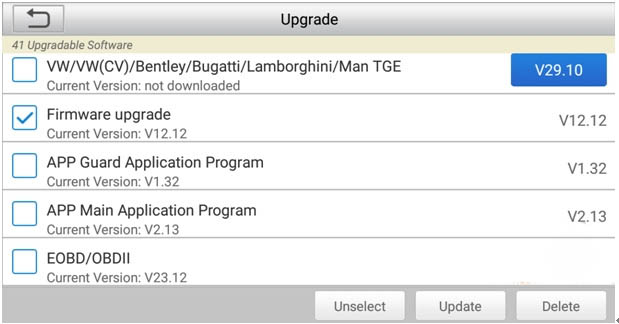
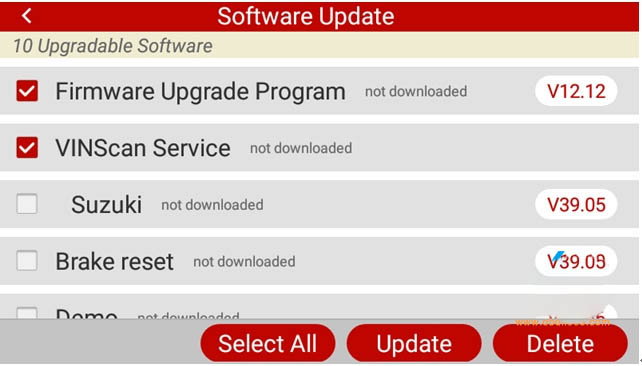
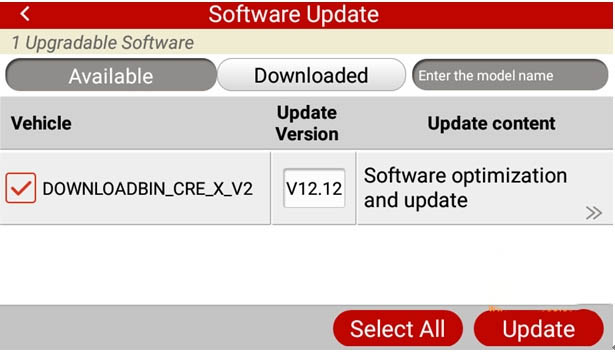
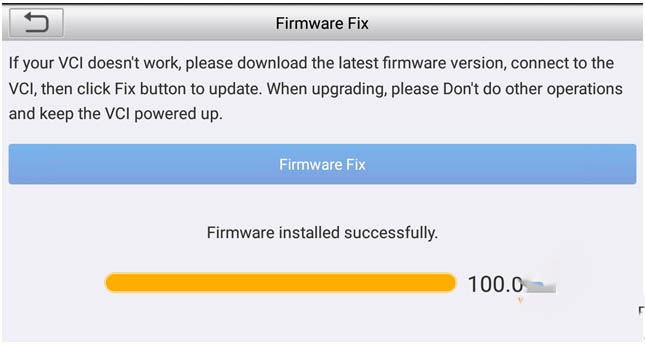
If the firmware update failed error persists after performing the steps above, try restarting the Launch Creader device and switching to a different network (such as a mobile 5G hotspot). Also, ensure that the firmware version strictly matches V12.12 and your device model. For other Creader series scanners (e.g., CRP123, CRP129) experiencing the same error, this guide works as well.
Manually re-downloading firmware from the Update Center and then running the repair process bypasses corrupted cache or damaged files that often cause the "Firmware update failed" error. This method has a very high success rate. After completing the repair, reconnect to the vehicle to verify normal diagnostic functionality.
![[EU/UK Version] LAUNCH X431 PRO3 APEX Diagnostic Scanner Support Topology Map Online Coding CAN FD & DoIP HD Truck Scan with 37+Services](https://obd-1317370369.cos.accelerate.myqcloud.com/2025/24071017206802678579-450x450.jpg)